Public Documentation
Feature Catalog: Guided Setup
Setup is now a guided experience: first-time owners get a friendly step-by-step walkthrough, and established teams get a clean settings hub with at-a-glance status cards — so launching takes minutes, not an afternoon.
Feature Guide
Start With One Question: What Kind of Business Are You?
The walkthrough now opens by asking what kind of business you run — General, Yoga & Fitness, Therapy & Counselling, Medical, Chiropractic & Clinical, Dental, or Salon & Spa. That one answer configures the whole platform in a single step: the words on every screen, which features are switched on, and the dashboard cards you'll see each morning.
Pick Salon & Spa and CalendarVU speaks in Guests and Stylists, turns on retail and checkout tools, and puts no-shows and low stock on your dashboard. Pick Therapy & Counselling and it speaks in Clients and Sessions, enables clinical notes and insurance receipts, and leads with intake forms and notes to complete. Everything remains individually adjustable afterwards — the preset is a running start, not a cage.
- Example: a new dental office answers one question and gets Patients, Providers, chart tools, insurance receipts, and a chair-utilization dashboard — before adding a single service.
- Change your answer anytime from Setup under Optional features; your services, clients, and history are untouched.
The Guided Walkthrough
After choosing your business type, the walkthrough continues with one question per screen: confirm your business language, add your location and hours, add your first service, and optionally invite your team. Every step is skippable, and finishing lands you on the settings hub ready to take bookings.
Smart defaults do the heavy lifting — a new service is bookable on all your rooms and equipment automatically, so there is no hidden configuration standing between you and your first booking.
- Example: a new massage studio can go from signup to a bookable 60-minute session in under five minutes.
- You can re-open the walkthrough anytime from the hub if you'd rather be guided.
The Settings Hub
After launch, Setup becomes a hub of cards — Locations & Hours, Services, Resources, Team & Access, Payments & Policies, Branding & Terminology — each with a clear Done, To do, or Optional badge.
A progress header shows how close you are to launch-ready and tells you the single next step, so nothing important slips through the cracks.
- Advanced options like custom resource types and per-location payment accounts stay tucked behind clearly labeled Advanced sections, while multi-step itineraries live right on each service profile.
- Optional features (Classes, Programs, Retail, POS) live in one small card so the daily interface stays focused.
Your Business Language
The Branding & Terminology card lets you choose the words the whole app uses. A chiropractic clinic sees Patients, Appointments, and Treatments; a salon sees Guests, Appointments, and Services — with per-word overrides when you want something truly yours.
Headings, guidance, and setup descriptions follow the same language automatically. Changing Service to Treatment updates the surrounding instructions too, so teams never see mixed wording.
- Example: switching from a general business pack to Chiropractic & Clinical clears outdated custom words and immediately applies Treatment throughout setup.
- Use Reset to pack defaults whenever you want to remove custom wording and return to the selected industry language.
A Branded Welcome for Your Team
Create a polished staff sign-in experience with your company name, welcome message, and logo. A simple company code lets team members load the correct branding before they enter their credentials.
- Example: a multi-location wellness company gives staff an easy-to-remember code so they immediately know they are signing in to the right organization.
- Square logo cropping keeps the sign-in experience clear and recognizable across desktop and mobile screens.
Locations and Hours
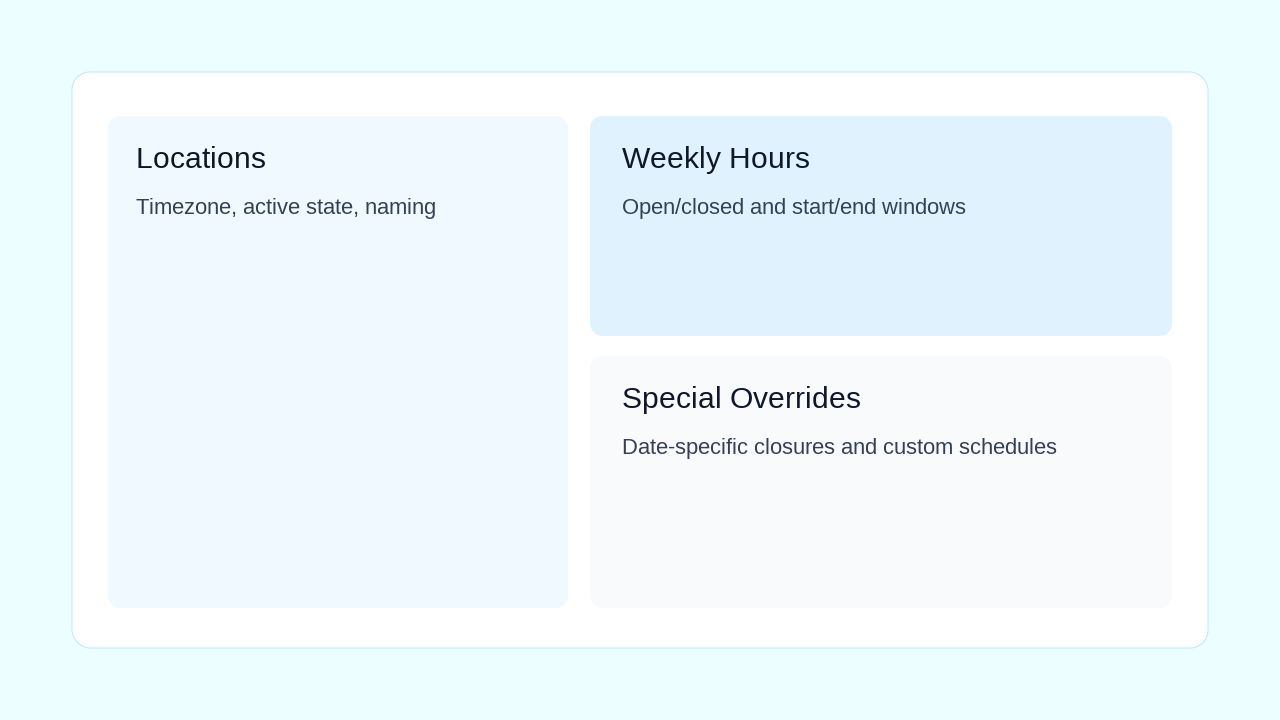
Define active locations and set timezone per location so every schedule is anchored to the correct operating reality.
Configure weekly business hours and date-specific special overrides to prevent avoidable booking confusion.
Services and Resources
Create service categories and service definitions with duration to make your catalog easier to sell and easier to manage.
Map resource capability to services so availability reflects what your studio can truly deliver.
Every company starts with the resource types most teams need — Staff, Room, and Equipment — so adding a provider, chair, treatment room, or shared device is ready from the first setup session.
The Services workspace uses the same focused list-and-profile design as Resources. Teams can search and filter the catalog on the left, organize categories inline, then update duration, delivery, cancellation, resource, and deposit rules without scanning a long stack of forms. Clear selected states and smooth panel transitions help staff keep their place as they move through the catalog.
Which staff, rooms, and equipment can deliver each service is now decided right on the service profile: a simple checklist shows every active resource, with a clear warning whenever an active service has nothing mapped to deliver it.
- Resource quantity supports pooled capacity.
- Coverage checks help identify active services with no resource mapping.
- Click a generated staff avatar to upload a profile photo that appears throughout the resource workspace.
- Create, rename, deactivate, or safely delete resource types from one focused editor, helping the workspace stay aligned as the business changes.
- Example: a studio can launch new equipment-based services without manually coordinating every booking behind the scenes.
- Example: a clinic can select a treatment from the list, confirm which providers can deliver it, and update its online deposit from one clear profile.
Multi-Step Itineraries on a Visual Timeline
Some visits are journeys, not single appointments: a sauna before a massage, a prep room before a treatment, an equipment circuit that moves members from station to station. Every service can now be switched from a single visit to a multi-step itinerary — one booking that runs through several timed steps in sequence, where each step can use a different staff member, room, or piece of equipment.
The itinerary is built on a visual timeline instead of a stacked form. Numbered steps sit on a connecting rail, each with its own name, duration, and required resource type shown as easy-to-read chips, so the whole visit — sequence, timing, and resources — reads at a glance. Smooth sliding controls make changes easy to follow, while a rules bar above the timeline sets whether steps run in order, how much gap is allowed between them, and shows a live total visit time as you build.
The client books once. The system reserves every resource for its step and holds the whole chain together as one visit, so the front desk sees one arrival and the schedule stays honest behind the scenes.
- Example: a spa offers a Signature Visit booked as Sauna (20 min) → Massage (50 min) → Relaxation lounge (15 min) — the sauna, therapist, and lounge are each reserved for their step, back-to-back.
- Example: a fitness studio builds an equipment circuit where members flow between stations in order, with short gaps allowed between steps.
- Steps can be marked optional or temporarily inactive, and the service's total duration is calculated automatically from its active steps.
- Every new service can start life as an itinerary: tick one box during creation and build the steps immediately after.
Resource Readiness at a Glance
The Resources page now works like a practical operations console: your team can search staff, rooms, and equipment on the left, then open a complete profile on the right without losing context.
Each resource shows whether it is bookable, inactive, or still missing setup. Public bios stay separate from private staff notes, so businesses can confidently present the right information to clients while keeping internal coaching, room notes, or payroll context private.
- Example: a yoga studio can see that an instructor is active but not bookable because no classes are mapped yet, fix it immediately, and know online booking will only show classes the studio can actually deliver.
- Profile photos, titles, capacity, working hours, credentials, and service capability all live together, helping managers onboard new providers faster.
- Unsaved drafts and clear confirmations protect in-progress profile work, while dependency previews show future commitments before a resource is archived.
- Example: before retiring a treatment room, a clinic can see its upcoming appointments and recurring schedules, reassign them, and preserve every historical record.
Feature Visibility and Readiness
Setup review now controls whether classes, programs, retail, POS tools, and related workflows are visible to the active location.
This lets teams stage new operational areas gradually instead of showing every possible workflow before the configuration is ready.
- Enable classes and programs when templates, rosters, and pricing are ready.
- Enable retail and POS tools only when the location is ready for mixed-cart sales.
- Use readiness guidance to see what should be configured before exposing optional feature areas to staff.
Commerce Offers, Specials, and Intros
Commerce setup can now define scheduled specials, first-time intro offers, and membership intro price plans from the same setup area where products and entitlements are configured.
This keeps discount logic on the setup side instead of relying on front-desk memory or manual one-off overrides during checkout.
- Create normal recurring membership pricing first, then add an optional intro recurring plan only when needed.
- Use auto-apply when staff should not have to remember a special.
- Use first-purchase or first-membership eligibility when an offer should only apply to new clients.